Getting Started
This page gets Beam working for a live event in a few minutes. You are ready when Beam shows your current song and the display is on your projector, TV, or second screen.
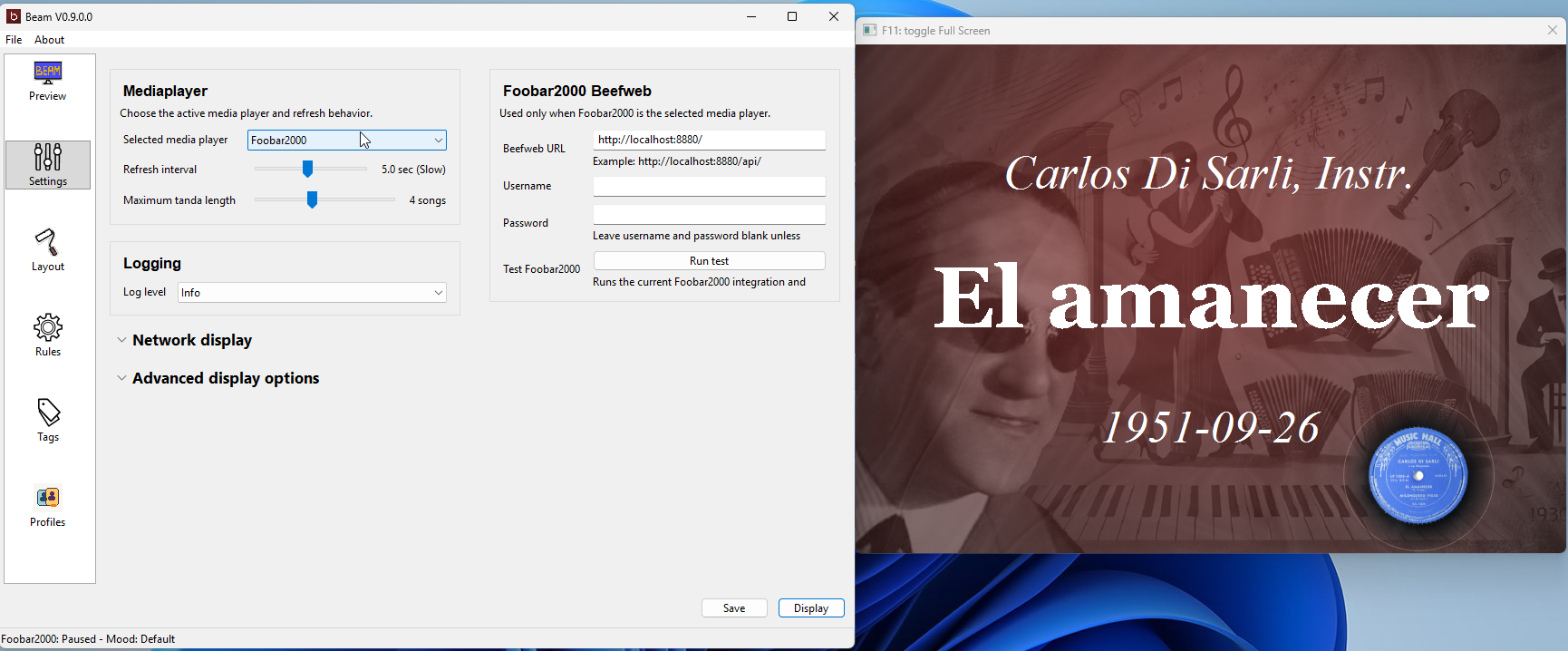
1. Install and launch Beam
Get Beam from the Download page and start it.
2. Choose your music player
- Open
Settings. - Choose the music player you use live (for example Foobar2000, VirtualDJ, JRiver, Mixxx, or Now Playing).
- Click
Apply.
Some players need a little setup. See Player Support for the notes for your player.
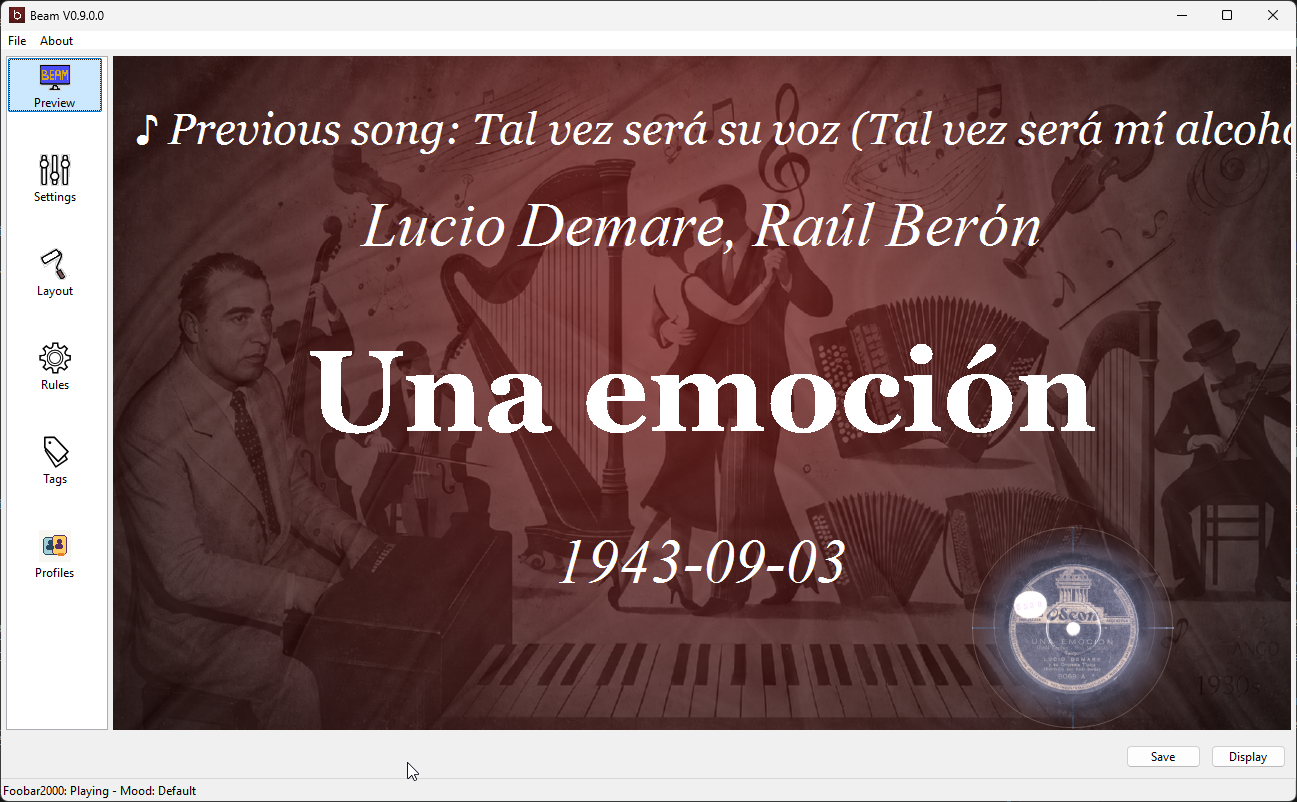
3. Play a song and check the preview
- Start playing a track in your player.
- Look at the Beam preview. It should show the current song information.
If the preview shows the song, the connection is working.
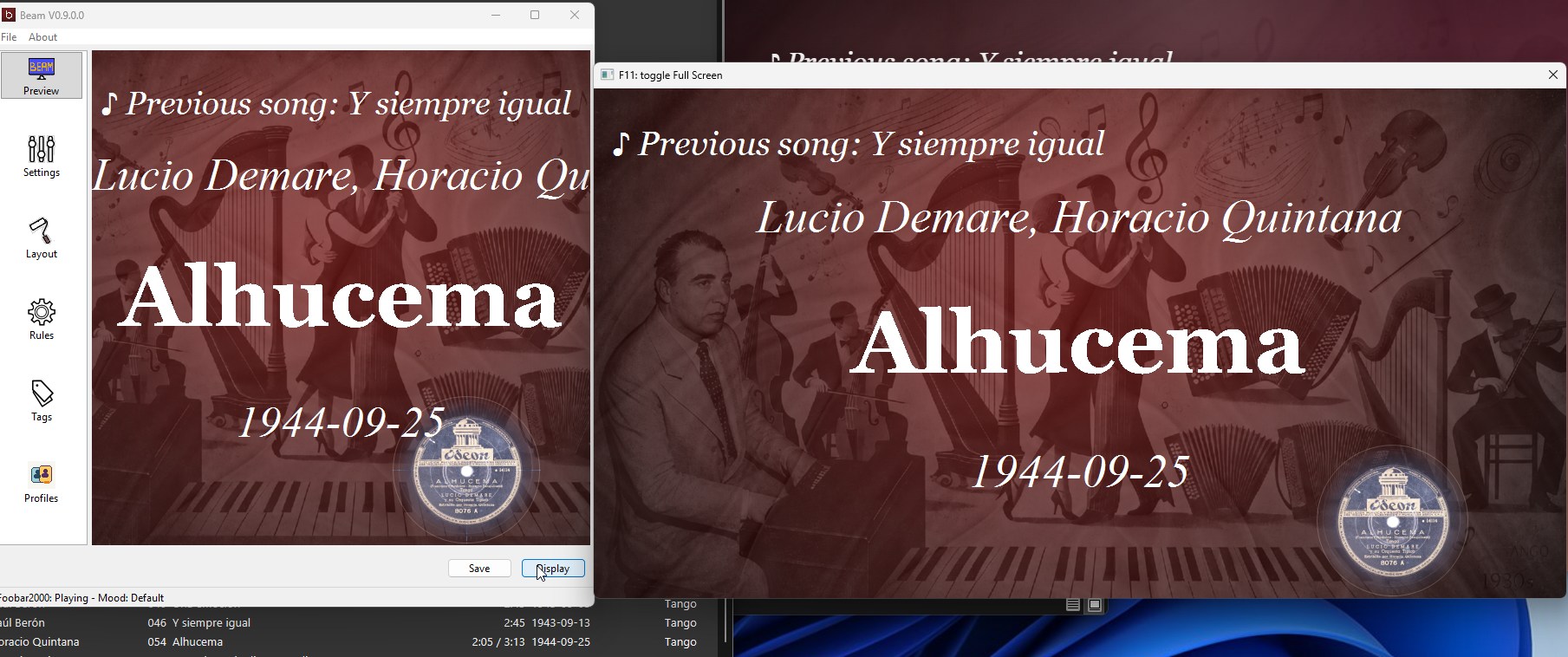
4. Open the display
- Click
Displayto open the audience screen. - Move that window to your projector, TV, or second monitor.
- Press
F11to toggle full screen if you need it.
5. Select a mood
Moods change the look of the display. Pick a mood that fits the night, or leave the default mood. Any change is shown on the display right away.
More on this in Moods and Backgrounds.
6. Test your text output
Before guests arrive, check these four things:
- the correct music player is selected
- a song appears in the preview
- the display is on the correct screen
- the text is readable from the back of the room
7. (Optional) Open the network display
Want the same screen on a tablet or phone? Enable the browser/network display and open the address Beam shows you on another device on the same Wi-Fi.
Full steps in Network Display.
Where to go next
- Features — what else Beam can do
- Moods and Backgrounds — customize the look
- Live Display Controls — messages and blackout
- Player Support — setup notes per player
- Troubleshooting — if something does not work
Home · Download · Getting Started · Features · Player Support · Network Display · Live Display Controls · Moods & Backgrounds · Troubleshooting · Changelog